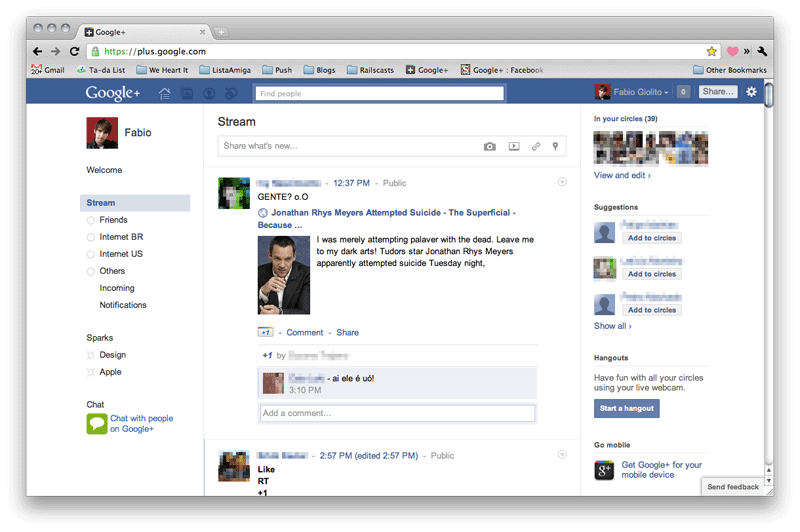
Of all the comparisons between the two, how the privacy differences between Google+ and Facebook stack up might end up being the most important.
If there’s anything Google+ can learn from Facebook’s experience, it’s that people are going to pay attention to its privacy policy. The Internet veteran has had its own user data battles to fight (particular overseas relating to its street view cam cars), but nothing quite gets consumers in an uproar like a social network’s privacy settings. While Google+ is still in its early days and things are likely subject to change, here’s an introductory look at how it sizes up against Facebook when it comes to guarding your information.
Readability
Digesting a website’s terms of service is one of the most mind-numbing, time-consuming activities imaginable – which is why most users don’t do it. Of course the same people who fail to go over the legalese are usually the ones most offended, but that doesn’t entirely mean the blame falls to them. When this portion of a site sounds like an instruction manual and falls above the eighth grade reading level, you’re asking for outrage. That might sound as if we’re advocating for dumbing things down, but sometimes and especially when it comes to user information that such a mass amount of the population uses, you should pander to the lowest common denominator.
This year Facebook tried to do just that by cutting down on the sophistication of how its privacy policy reads. Its new “controlling how you share” section simply and relatively briefly explains the basics of information sharing on the site. But that’s hardly where it ends. The amount of “learn more” links is overwhelming, and when you access the site’s actual privacy policy, there is a mountain of information. Also, we can understand how so many different URLs that pertain to Facebook privacy could be confusing, especially for younger users, of which there are many. The idea of including the new, simpler guide is full of good intentions, but it could also lead to confusion and may keep people away from perusing the entire privacy policy, which is always a wise choice to make.
Google+’s infancy actually helps it here. As far as readability goes, seeing as there aren’t any advertisers or applications for the site (yet), it doesn’t have quite as much to explain when it comes to sharing your information. And instead of a variety of places dissecting its policy, you have two main locations: The designated Google+ privacy page, and the official Google privacy policy. But if you want details, you can check out the +1 button, Picasa, and Google’s mobile privacy policies. And of course if you start getting into what Google+ may be broadcasting from your other Google accounts, you could potentially have a lot to wade through.
Winner: Draw – Google+ may have less to initially muddle through by itself, but diving into the Google privacy dashboard can lead to hours of staring at your screen. Google+ wins for its attempt at approachability, Facebook for laying all the cards on the table, even though all those cards might be confusing.
Customization
 Both Facebook and Google+ provide a way for you to see how other users view your profile and customize who sees what. The difference between the two really comes in with when and how they do this. Google+’s priority while you’re creating your profile revolves around showing you what you share and goes for opt-in versus opt-out. Circles are a major part of managing this and are one of the things you’re sent to again and again (i.e., every time you add a new person, you are prompted to determine in what category they belong; every time you post something you indicate who all will see it).
Facebook has a similar customization tool, but you are never sent to it. When you decide to limit access to something on your profile, you go there on your own – Facebook will never prompt you to visit your privacy settings. Once you’re there, of course, the experience is generally intuitive. But with so many people skimming privacy policies and only reacting after the fact, we think Google’s agenda by trying to bring who sees what to the surface is the better approach.
Winner: Google+
Tags
 Facebook tags are the one of the best and worst elements of the site. You can choose to make photos you’re tagged in visible to only some people, but the effort involved in this means most people would rather choose one of the prescribed settings, like “everyone” or “friends only.”
Google+ has the option to choose people who can automatically tag you and whether they can attach the location. You will need to change this, however, as the default lets people do it automatically, but including the option is a big bonus and something Facebook users have been asking for. Unfortunately, we’re not in love with Google+’s wording, which doesn’t precisely indicate you are asking for authentication rights for tagged photos. Considering the fact the tagged photos can be one of the most damning things out there, it’s a big step in the right direction that Google+ has this feature at all, and we advise using it.
Winner: Google+
Photos
We recently wrote about how much we love Google+’s take on photo albums. While that’s still true, its policy when it comes to your images deserves mention. Photofocus points out that part of its terms more or less say that when you share photos, “you give Google a perpetual, irrevocable, worldwide, royalty-free, and non-exclusive license to reproduce, adapt, modify, translate, publish, publicly display and distribute” them. Of course Google’s TOS also say “you retain copyright and any other rights you already hold in Content which you submit, post, or display on or though, the Services.” But if you’re a professional of any sort, you’re right to be a little wary when it comes to throwing your images up on Google+.
Facebook has the same sort of wording regarding intellectual property rights, but points out that this depends on your privacy and application settings. Meaning set photo sharing to “everyone,” and you’re giving up a lot of content. If you have a specific album you don’t want at the hands of anybody out there, you should make sure to clarify that in your settings. You can designate how people see your Google+ albums but it doesn’t say in Google+’s terms that Google itself will adhere to this, which Facebook specifically points out it is also subject to your privacy settings for photos.
Winner: Facebook
Circle vs. Lists
When you share something via Facebook, you’re likely sharing it with a lot of people. Even if you use the customization settings to the hilt, a post is rarely sent out to a handful of people. Part of this is because Facebook’s been around for awhile and users have accrued hefty Friends lists. Part of it is because customizing those types of features came later in the process. Google+ was able to learn from this and sharing anything on its network requires you to dictate who will see it then and there.
Facebook Lists helps you create specific groups, and then you can choose what your friends do and don’t see. The problem is that you aren’t reminded who you’re sharing something with, you need to think about it yourself. And when you do want to customize who sees a post, the lock icon doesn’t bring up the lists you’ve so carefully created automatically. Creating Circles is also much easier and its visual appeal definitely outdoes Facebook’s text-heavy interface.

Winner: Google+
Source: Digitaltrends